Can You Have Multiple H1 Tags? What Google Says
Google says multiple H1 tags are fine — but SEO best practice says otherwise. Here's what actually happens when you use more than one H1 and what to do instead.
Alex Carter
SEO Strategist · June 24, 2026
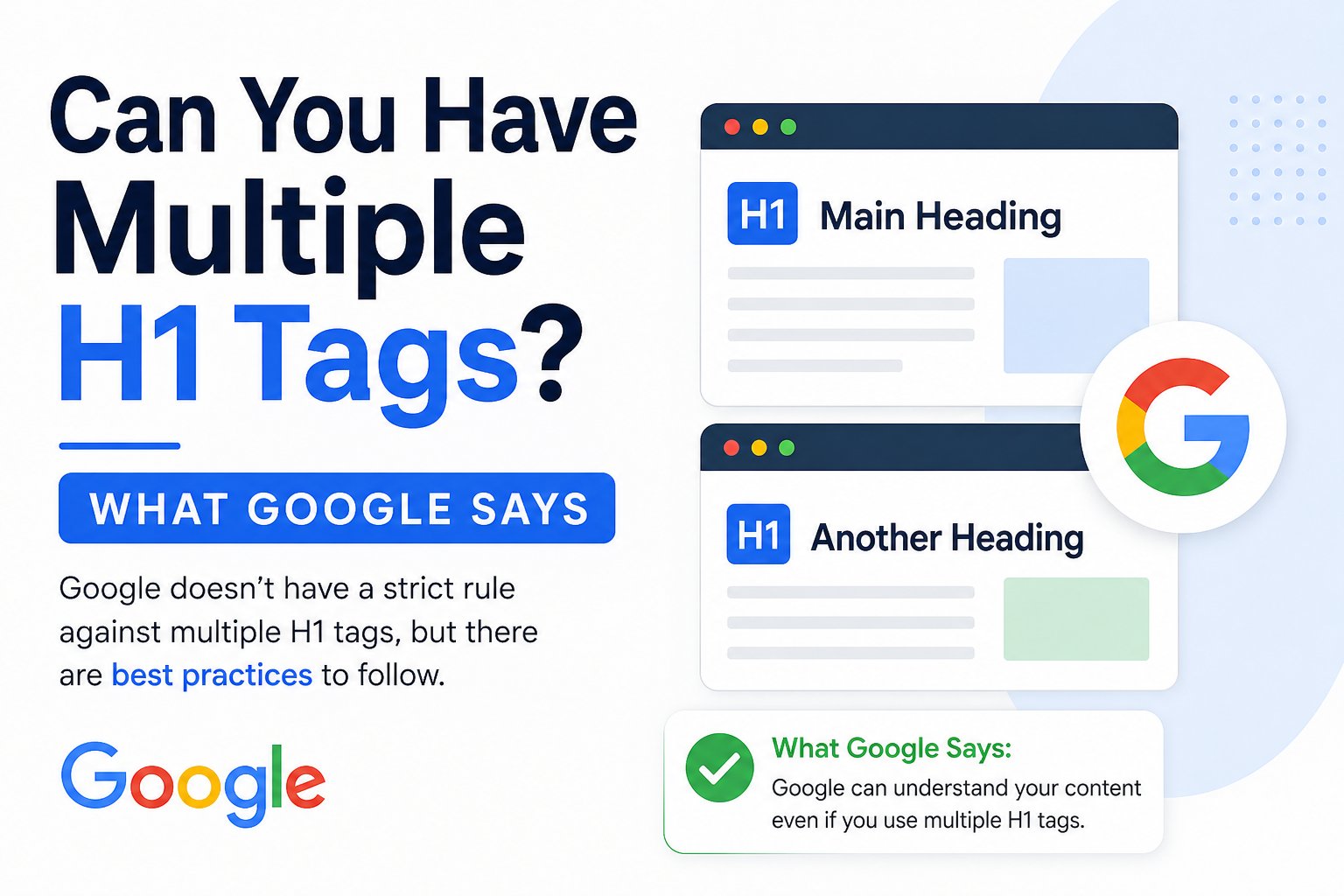
Here's where it gets interesting: Google and SEO best practice don't fully agree on this one.
Google's official position is that multiple H1 tags on a single page are fine. Their reasoning is that modern HTML5 allows for sectioned content — where each major section can technically have its own H1. Google says it can handle pages with multiple H1s without any problem.
So does that mean you should use multiple H1 tags? No — and here's why the nuance matters.
What Google Actually Said
In 2020, Google's John Mueller confirmed that having multiple H1 tags is not a problem for Google. He stated that Google can work with whatever heading structure a page uses, including multiple H1s, and that it doesn't negatively affect how the page is processed.
He also added — and this part tends to get left out — that using a single H1 makes it easier for Google to understand the page's primary topic.
That second point is the one SEOs pay attention to.
Why Multiple H1 Tags Are Still a Bad Idea
Google being able to handle something is not the same as it being optimal.
When you have one H1, you send a single, unambiguous signal about what your page is primarily about. Google reads it, cross-references it with your title tag, URL, and body content, and builds a clear picture of your page's topic.
When you have three H1s, that signal gets diluted. Google has to decide which H1 best represents the page — or treat all three equally, which spreads the topical signal across multiple headings instead of concentrating it on one.
In competitive searches, that dilution costs you. Your competitors with clean heading structures send stronger, clearer signals. Everything else being equal, the clearer signal wins.
There's also the reader experience to consider. A page with multiple top-level headings of equal visual weight is harder to navigate. Readers scanning for structure get confused about where the main content starts and what the primary focus is.
Common Reasons Pages End Up With Multiple H1s
Most sites don't deliberately use multiple H1 tags — it usually happens by accident:
❌ Theme or template issues. Some CMS themes apply H1 formatting to the site logo, the navigation bar, or a promotional banner — in addition to the actual page title. The page has multiple H1s without the publisher ever intending it.
❌ Page builders. Drag-and-drop editors sometimes apply H1 styles to decorative text or section headers without the user realising it's a heading tag rather than just a font style.
❌ Migrated content. Content imported from another CMS or document format can carry over incorrect heading levels.
❌ Misunderstanding of HTML5. Some developers implement the HTML5 sectioning model with multiple H1s, following the spec — but this practice was never widely adopted by browsers or search engines in the way the spec intended.
How to Check If You Have Multiple H1 Tags
The quickest method is to inspect the page source (right-click → View Page Source in any browser) and search for <h1. Count how many appear.
A faster option is to run your page through Rankivo's SEO Score Checker, which flags multiple H1s — along with every other heading structure issue — in one audit. It's useful for checking not just one page but identifying the problem across your entire site.
How to Fix It
If you find multiple H1s on a page, the fix depends on the cause:
✅ Theme/template H1s: Edit the theme to change the heading level of any non-content elements that are incorrectly marked as H1. The site logo and navigation should have no heading tag at all.
✅ Content H1s: If your article body contains two or more H1s, demote all but the main title to H2 or H3 depending on their position in the content hierarchy.
✅ Page builder H1s: Check the heading level setting for each text block and adjust any decorative or section headings down to H2 or lower.
The goal is one H1 per page — the main topic heading, containing your primary keyword, at the top of the content.
For the full breakdown of how to use every heading level correctly: How to Use Heading Tags (H1, H2, H3) for SEO.
And for the complete on-page SEO framework: On-Page SEO for Beginners: The Complete 2026 Guide.
This Article Is Part of Our On-Page SEO Series
📚 Explore the full Keyword Research Series
Start here:
Pillar article:
👉 On-Page SEO for Beginners: The Complete 2026 Guide
Parent cluster article:
👉 How to Use Heading Tags (H1, H2, H3) for SEO
More articles in this group:
Can You Have Multiple H1 Tags? What Google Says ← You are here
Explore the full series to go deeper on any topic.
Frequently Asked Questions
Does Google penalise pages with multiple H1 tags?
No — Google doesn't penalise them. But multiple H1s dilute your topical signal and make it harder for Google to identify your page's primary focus. In competitive searches that dilution can cost you rankings against cleaner pages.
What if my CMS automatically adds an H1 to my page title?
Most CMS platforms — WordPress, Webflow, Squarespace — apply H1 to the post or page title automatically. As long as your article body doesn't contain additional H1s, you're fine. The issue arises when the theme adds extra H1s on top of the content title.
Can I use two H1s if they're about the same topic?
Still not recommended. Even if both H1s are on-topic, using two sends a weaker signal than using one. Demote the second to an H2 — it serves the same structural purpose without diluting the primary heading signal.
Is this different for single-page websites?
Single-page sites — where all content lives on one scrolling page — are one of the few cases where multiple H1s are more defensible, since each section is essentially a separate content area. Even then, best practice is to use one H1 for the main hero section and H2s for the sections below.
How do I know which H1 Google is using as the primary one?
You can't control which H1 Google prioritises if you have multiple. That's the core problem — you're leaving it to Google to decide. Use one H1 and remove the ambiguity entirely.
Find and fix heading issues across your site with Rankivo's free SEO Score Checker — or explore the full on-page SEO toolkit at rankivo.co.
Written by
Alex Carter
SEO Strategist
Alex has spent 8+ years helping brands dominate search rankings. Specializes in technical SEO, keyword strategy, and content systems that drive compounding organic traffic.
Ready to create content like this?
Use RANKIVO to generate SEO-optimized content in seconds. Start free today.
Start Free — No Credit Card